SSH & Authentication
All things SSH and authentication.
PAM
Pluggable Authentication Modules (PAM)
PAM is essentially an authentication system that allows for different modules to be added for support of different authentication methods, as an example; 2fa would be handled by PAM on a Linux system.
/etc/security/
====================================================================================
Lockout Policies
FailLock
FailLock is a PAM module used for tracking failed authentication attempts in Linux systems.
It is primarily used to prevent brute force attacks by locking out user accounts after a specified number of consecutive failed login attempts.
Key Features of faillock
- Account Lockout: Locks a user account after a specified number of failed authentication attempts.
- Unlocking: Automatically unlocks the account after a specified period, or an administrator can manually unlock it.
- Logging: Records failed login attempts and lockout events, which can be useful for security auditing.
------------------------------------------------------------------------------------------------------------------------------------------------
Pam_Tally2
Pam_Tally2 is the older version of failock which essentially does the same thing, just with fewer features. You'll potentially need to use this on older servers as they may not support failock.
Pam_Tally2 configuration file - /etc/pam.d/login
The below example locks users out after 3 failed logins, denies any root login attempts, and keeps accounts locked for 1 hour.
#
# The PAM configuration file for the Shadow `login' service
#

auth required pam_tally2.so deny=3 even_deny_root unlock_time=3600
====================================================================================
2-Factor Authentication (2FA)
2FA can be configured for SSH logins to servers. You'll most likely want to configure 2FA using PAM modules.
-----------------------------------------------------------------------------------------------------------------------------------------------
Cisco DUO
- Create an account for Duo here
- Add an 'application' to protect with duo
application type in this case will be 'UNIX application'
Once created, you'll be given access to the keys required for setting up DUO - DUO configuration on server:
Ubuntu 22 example
add repo key and install duo
Create /etc/apt/sources.list.d/duosecurity.list with the following contents:
deb [arch=amd64] https://pkg.duosecurity.com/Ubuntu jammy maincurl -s https://duo.com/DUO-GPG-PUBLIC-KEY.asc | sudo gpg --dearmor -o /etc/apt/trusted.gpg.d/duo.gpg
apt-get update && apt-get install duo-unixOnce installed, you can configure duo from /etc/duo
in /etc/duo add the integration key, secret key, and API hostname from your Duo Unix application.
As a regular user, test login_duo manually by running
/usr/sbin/login_duoYou'll be given a link at this point which can be used to configure your 2FA device.
Once you've tested that this is working, we can then look to implement duo to the SSHD and PAM config.
Edit /etc/pam.d/sshd and add the below:
auth requisite pam_unix.so
auth [success=1 default=ignore] /lib64/security/pam_duo.so
auth requisite pam_deny.so
Note: On some systems, the path to pam_duo.so might be /lib/security/pam_duo.so.
Edit the /etc/ssh/sshd_config and add:
UsePAM yes
ChallengeResponseAuthentication yes
Restart the SSHD service and test the configuration.
Clearing Command Line History
Oh dear, you've made a mistake on a clients server and want to hide the evidence...
There's a few options here, also see the history man page for more info.
1. Remove the command from bash history using the history -d command:
history -d LINE-NUMBERThe downside of this, is that the command run to delete the history will be included in the bash history, this brings us on to the sneakier method.
2. When running the history -d command, preface the command with a space. A leading space before a command instructs the shell to ignore it for history logging.
history -d LINE-NUMBER3. Finally, there's another option we can use to clear the entire bash history:
history -cSSH Configuration
====================================================================================
What is SSH?
SSH, or Secure Shell, is a cryptographic network protocol used for secure communication over an unsecured network. It is widely used to manage and access remote servers securely. SSH provides strong authentication and encrypted data communications between two computers, which helps protect against eavesdropping, connection hijacking, and other types of attacks.
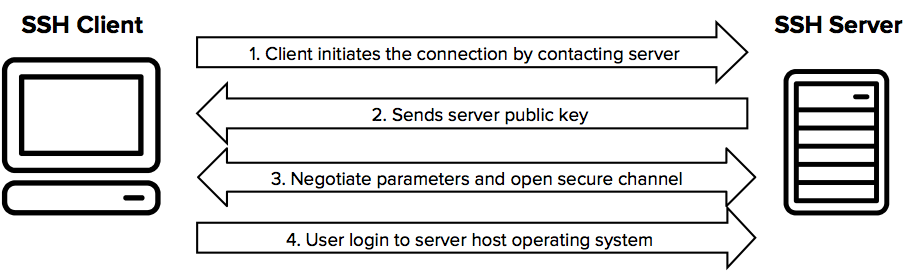
SSH Connection Process
-
Client Initiates Connection:
The client initiates an SSH connection to the SSH server by sending a connection request. -
Server Responds with Public Key:
The server responds with its public key (and often a host key, which is used to uniquely identify the server and can be used to verify the server's identity). -
Client Verifies Server Identity:
The client verifies the server's public key against a local list of known hosts to ensure it is connecting to the correct server. If the server's key is not in the known hosts file, the user is usually prompted to accept the new key. -
Key Exchange:
The client and server perform a key exchange to securely generate a shared secret key. This key exchange process does not involve the client generating a private key. Instead, they use the server's public key to negotiate a shared secret (symmetric key) through an algorithm such as Diffie-Hellman. Both the client and server use their own private keys (already generated and stored) for this purpose. -
Session Key Generation:
The shared secret generated during the key exchange is used to create session keys, which are symmetric keys for encrypting the data transferred during the session. Both the client and the server now have the same session keys. -
Client Authentication:
The client authenticates itself to the server. This can be done using various methods:-
- Password Authentication: The client sends a password over the encrypted connection.
- Public Key Authentication: The client generates an SSH key pair (public and private keys) before the connection. The public key is stored on the server in the
~/.ssh/authorized_keysfile. During the authentication process, the client proves possession of the corresponding private key by using it to sign a challenge provided by the server.
-
-
Secure Communication:
After successful authentication, the client and server use the session keys to encrypt and decrypt the data transferred between them, ensuring secure communication.
-----------------------------------------------------------------------------------------------------------------------------------------------
SSH Configuration
When it comes to SSH configuration, we're either talking about the SSH client, or the SSH server. (Ttypically both are installed on Linux Systems)
The configuration for the SSH server is located in /etc/ssh/sshd_config
The configuration for the SSH client is located in /etc/ssh/ssh_config
SSH Server Configuration Options
NOTE: Any changes made to the sshd_config won't be applied to your session until you reconnect (and restart SSHD).
NOTE: You can use the command sshd -T to view the current SSH server setup - also lists ciphers!
These are all options that can be added to the SSH server (sshd_config) configuration file.
| Port 22 | Specify port for SSH server to listen on. |
| Listen Address IP_IP_IP_IP | Change the IP that the SSH server listens on |
| PasswordAuthentication yes | Enable password authentication |
| PubkeyAuthentication yes |
Enable key authentication |
| Match User ukfastsupport PasswordAuthentication yes AuthenticationMethods password |
A match user block is where specific rules can be set for a specified user. |
| Match Address 10.0.0.5,10.0.0.11 PermitRootLogin yes AuthenticationMethods publickey PasswordAuthentication no |
Similarly to 'match user', we can also create rules based on the connecting address. |
| PermitRootLogin no |
allow direct logins to the root user (or not) |
| Protocol 2 |
Disable SSH1 (old and shouldn't really be used) |
| ClientAliveInterval 300 |
Idle timeout for connections |
| ClientAliveCountMax 2 |
Max number of 'alive' messages sent before a user is disconnected |
| X11Forwarding no |
Disable graphical environments over SSH |
|
|
-----------------------------------------------------------------------------------------------------------------------------------------------
Known Hosts
known_hosts is a file kept in the home directory of a user. This file contains the fingerprint key of each SSH-server that a connection has been made to. This is a security feature within SSH as it allows for host fingerprint keys (unique) to be validated before the connection is established.
~/.ssh/known_hosts-----------------------------------------------------------------------------------------------------------------------------------------------
SSH Keys
SSH keys are a pair of cryptographic keys used in SSH (Secure Shell) protocol to authenticate a user and establish a secure communication channel between the client and server. The SSH key pair consists of a private key and a public key.
For key-based authentication to work, you'll need to ensure that key authentication is enabled in your SSHD configuration.
SSH key pairs are user-specific, and are stored by default in the home directory as:
private key: ~/.ssh/id_rsa
public key: ~/.ssh/id_rsa.pub
Generate an SSH key pair
ssh-keygenSharing SSH keys
The ssh-copy-id command is used to install your public SSH key on the remote server, allowing you to log in to that server without needing to enter a password each time.
ssh-copy-id user@remoteserverViewing stored keys
Keys that have been stored for a user can be viewed within ~/.ssh/authorized_keys
-----------------------------------------------------------------------------------------------------------------------------------------------
SSH Certificates
"SSH certificates are a method of managing SSH keys that involves issuing signed certificates from a Certificate Authority (CA). These certificates contain a user's public key, identity information, and access permissions. They enhance security and simplify management compared to traditional SSH key pairs."
ssh-keygen -q -N "" -t rsa -b 4096 -f /etc/ssh/ssh_host_rsa_key-----------------------------------------------------------------------------------------------------------------------------------------------
Algorithms
SSH's support algorithms can be defined within the SSHD configuration file.
LDAP (Lightweight Directory Access Protocol)
LDAP (Lightweight Directory Access Protocol) is a protocol used to access and manage directory services over a network. It is designed to provide a standard way to store and retrieve hierarchical data structures, which can include information about users, groups, systems, and other resources.
Client Configuration
Installing required packages
apt install libnss-ldapd libpam-ldapd ldap-utilsrealm -v discover ldap.servername