
File Permissions & Ownership
Linux File Ownership
Files and directories in Linux are owned by a user and group.
chown
The chown command can be used to set or change the user or group associated with ownership of the file.
chown newuser:newgroup filenameFlags
| -R | Recursive. |
| -c | changes - Similar to verbose but only reports if changes are made to a file. |
| -f | Suppress most errors. |
| -v | Verbose - Display diagnostic info for every file processed. |
Linux File Permissions
Every file in Linux has permissions, these define which actions can be undertaken by the user, group, and other.
As seen on the file below, permissions are set at the start of the line using 10 characters.
-r--r-xrw- 1 root root 27 May 26 10:56 test.txtThese 10 characters are the permission classes and are used as follows:
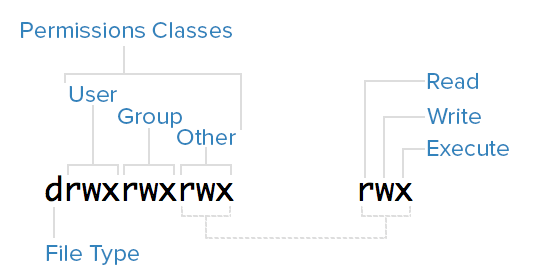
File Type
| File Type | Symbolic Representation |
| file | - |
| directory | d |
chmod
The chmod command is used for changing file or directory permissions.
chmod [options] {mode} filenamechmod Modes
The chmod command supports 2 'modes'. These are methods in which the command can be used to implement permission alterations.
Symbolic Mode
Symbolic mode allows for changes to be made using 3 components;
| Permission Contexts | Permission Operators | Permission Attributes |
| u/g/o/a (User/Group/Other/All) |
+/-/= (Add/Remove/Exacy) |
r/w/x (Read/Write/Execute) |
Example
To add write permission for the user;
chmod u+w test.txtTo exactly set permissions for u/g/o;
chmod u=rwx,g=rwx,o=r filenameAbsolute Mode
Absolute mode allows for changes to be made using the octal numbering system, as shown below;
| Number | Attribute |
| 4 | Read |
| 2 | Write |
| 1 | Execute |
These numbers can be combined to set permissions on a file or directory.
Example
For example, to set user=read,write group=read other=execute;
chmod 641 filenameFlags
(Flags are usable with either mode)
| -R | Recursive. |
| -c | changes - Similar to verbose but only reports if changes are made to a file. |
| -f | Suppress most errors. |
| -v | Verbose - Display diagnostic info for every file processed. |
FACL - File Access Control List
File Access Control Lists (FACLs) provide a robust mechanism for managing file permissions in Linux, offering greater flexibility and control than traditional Unix permissions. By using commands like setfacl and getfacl, administrators can easily set and view ACLs to fine-tune access to files and directories for multiple users and groups.
View file/directory ACL
getfacl filenameGrant an additional user permissions on a file
setfacl -m u:username:rwx filenameRemove a user's permissions on a file
setfacl -x u:username filenameDefine default ownership/permissions for directories
setfacl -m d:u:username:rwx filename Sticky bits
In Linux, the sticky bit is a special permission that can be set on directories to control user access to the files within those directories. When the sticky bit is set on a directory, it restricts the deletion or renaming of files within that directory. Specifically, only the file's owner, the directory's owner, or the root user can delete or rename files.
Enable sticky bits
chmod o+t directorynameDisable sticky bits
chmod o-t directorynameumask & default permissions
Linux users will have a configuration option set to decide on the default permissions to be used on a file created by that user, this is known as the 'umask'.
umask is represented as a numeric value comprised of 4 numbers.
daniel@test:~$ umask
0002
Firstly, the starting number is used to represent a special default bit being set - ie a sticky bit. The following 3 numbers are used to represent permissions.
As you can see, the numbering system used to represent permissions differs from the standard numeric permissions system. This is because when a file or directory is created on a linux system, it initially takes the default max permissions, which is 777 for directories and 666 for files. The umask value is then imposed onto these files/directories. The value represents the number of bits that need to be subtracted from the max value.
For example, a directory is created and initially takes a 777 permission. The umask value is then imposed; in this example we have a 022 umask. 777 - 022 = 755.
Changing umask value
To change the umask value for the current user;
umask [numeric value]
| -S | Display the current mask. |
| -p | Diplay the current mask in numeric format. |
The default permissions can also be altered via the bashrc file for a given user. This will typically be located within /home/user/.bashrc.
To alter the umask value within .bashrc, you'd simply need to either change or add the following line to your desired value;
umask 0022